
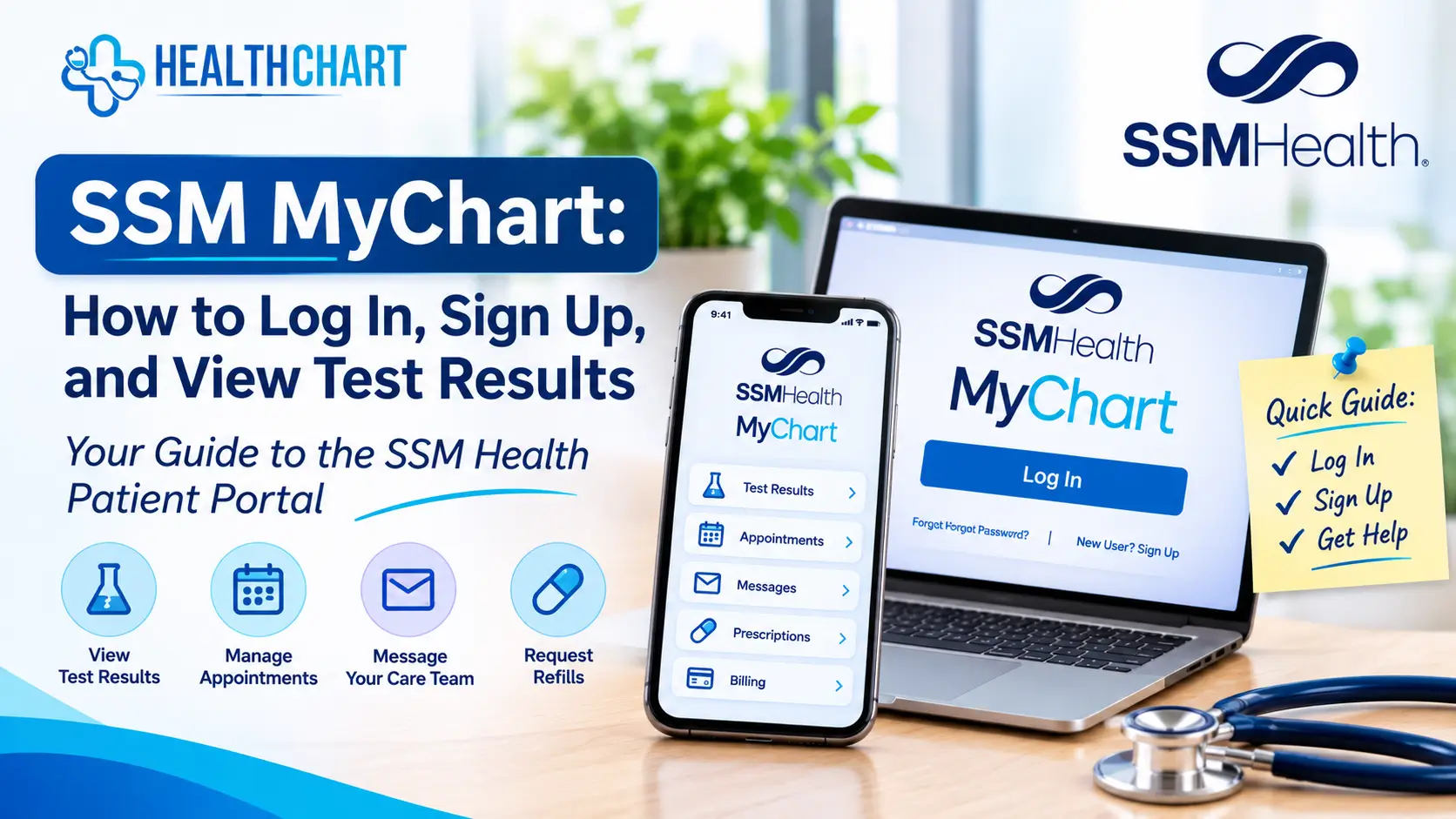
If you receive care through SSM Health, you may be able to use SSM MyChart to access parts of your medical record online. The patient portal allows eligible patients to review test results, manage appointments, communicate with their healthcare team, request prescription refills, and handle certain billing tasks.
Whether you are trying to find the SSM MyChart login page, create an account, check a recent laboratory result, or recover a forgotten password, this guide explains the main steps and where to get official assistance.
Important: MyHealthChart is an independent health information website. It does not operate SSM Health MyChart, provide access to SSM Health patient accounts, or have access to personal medical records. For account access, always use the official SSM Health website.
What Is SSM MyChart?
SSM MyChart is SSM Health’s online patient portal. It gives eligible patients secure access to selected health information and services through a computer or mobile device.
Depending on the services available to your account, you may be able to:
- View laboratory and other test results.
- Review portions of your medical record.
- Send secure messages to your healthcare team.
- Schedule or manage appointments.
- Request prescription refills.
- Receive appointment and test-result notifications.
- Review and pay eligible medical bills.
- Access certain virtual-care services.
The features available to you may depend on your healthcare services, account access, and SSM Health’s current portal options. Visit the official SSM Health MyChart page for the latest information.
If you want to learn more about how patient portals work generally, read our guide to the MyChart patient portal.
SSM MyChart Login: How to Access Your Account
To sign in to your SSM Health patient portal:
- Open the official SSM Health MyChart login page.
- Enter your SSM Health MyChart username or Epic ID.
- Enter your password.
- Complete any requested identity-verification steps.
- Select the login option to access your account.
If you are signing in for the first time, you may need to complete account activation before you can use the portal.
If you are unsure how to locate your healthcare organization’s patient portal, you can also read our guide on how to find your MyChart portal.
Security reminder: Only enter your username, password, and verification information on the official SSM Health portal. MyHealthChart will never need your MyChart password or activation code.
How to Sign Up for SSM MyChart
If you are an SSM Health patient and do not already have an account, you may be able to register using an activation code or an online self-sign-up option.
Option 1: Use an activation code
SSM Health may provide an activation code during a clinic or hospital visit. Follow the instructions provided with the code to create your username and password and activate your account.
If you did not receive a code, contact your SSM Health clinic and ask how to enroll.
Option 2: Try online self-sign-up
SSM Health may allow eligible patients to create an account online by verifying their identity and matching their information with the details in their medical record.
Start from the official SSM Health MyChart page and follow the enrollment instructions displayed there.
If online registration is unavailable or you cannot verify your information, contact SSM Health for assistance.
How to View Test Results in SSM MyChart
One of the most useful features of a patient portal is the ability to review test results online.
After signing in:
- Open your SSM Health MyChart account.
- Look for the Test Results section or a similar option in the menu.
- Select the test you want to review.
- Read the result, units, reference range, and any available comments.
- Contact your healthcare professional if you have questions about what the result means for your health.
SSM Health explains that most results appear in MyChart as they become available to clinicians. This means you may see a result before your provider has discussed it with you. Some results may be difficult to understand or may need additional clinical explanation.
A result marked high, low, or abnormal does not automatically establish a diagnosis. Healthcare professionals interpret results using your medical history, symptoms, examination, and other relevant information.
For more information, read our guide to understanding MyChart test results and learn more about MyChart lab results.
How to Understand SSM MyChart Lab Results
When you open a laboratory result, you may see several pieces of information:
- Test name: Identifies the laboratory test performed.
- Result: Shows the measured value or finding.
- Unit: Explains how the measurement is expressed, such as mg/dL or mmol/L.
- Reference range: Shows the comparison range provided by the laboratory.
- Result flag: May identify a result as high, low, abnormal, or outside the stated range.
- Collection date: Indicates when the sample was collected.
- Comments: May include notes or explanations from the laboratory or healthcare professional.
Reference ranges can differ between laboratories because testing methods and reporting standards may vary. A result outside the displayed range does not necessarily mean that you have a medical condition, and a result inside the range does not guarantee that every aspect of your health is normal.
For more general information about common laboratory measurements, explore our lab result interpreter. You can also read our guide to MyChart lab results for more information about common result terms and displays.
These resources are educational and are not a substitute for a clinician’s interpretation of your personal results.
What to Do If You Forgot Your SSM MyChart Username or Password
If you cannot remember your login information, open the official SSM MyChart login page.
Look for the account-recovery options, such as Forgot Username or Forgot Password, and follow the instructions to verify your identity.
If you cannot complete the recovery process:
- Check that you are using the correct SSM Health portal.
- Make sure the email address or phone number associated with your account is still accessible.
- Check your email’s spam or junk folder for verification messages.
- Contact the SSM Health MyChart help desk if you still cannot recover your account.
SSM Health lists its MyChart help desk number as 1-888-972-4278. Confirm the contact information on the official SSM Health MyChart page in case support details change.
Never share your password or verification code with someone claiming to recover your account for you.
How to Use the SSM MyChart Mobile App
SSM Health patients can also access MyChart through the MyChart mobile application.
To get started:
- Open the Apple App Store or Google Play Store on your device.
- Search for the official MyChart application.
- Download and open the app.
- Select SSM Health as your healthcare organization.
- Sign in using your existing account information.
You need an SSM Health MyChart account to access your personal portal information. App features may vary depending on your device and the services available through SSM Health.
For current app instructions, use the links and guidance on SSM Health’s official MyChart page.
Can You Use SSM MyChart to Access a Family Member’s Medical Records?
SSM Health provides options for proxy access, which may allow an authorized person to help manage another individual’s healthcare information.
The portal includes options for requesting access to a child’s account and an adult’s account. The requirements and available information depend on the person’s age, circumstances, authorization, and SSM Health’s policies.
Do not assume that being a spouse, parent, or caregiver automatically gives you access to another person’s medical information. Follow the official SSM Health MyChart instructions to request the appropriate access.
Why Is SSM MyChart Not Working?
If you cannot sign in or a portal feature is not working, the problem may involve your login information, identity verification, internet connection, or a temporary technical issue.
Here are some practical steps to try:
1. Check your login details. Make sure you are using the correct username or Epic ID and password.
2. Recover your account. Use the official forgotten-username or forgotten-password options if necessary.
3. Check your verification messages. Look in your spam or junk folder if you are waiting for an email verification code.
4. Try another browser or device. An outdated browser or temporary browser issue may affect access.
5. Check your internet connection. A weak or interrupted connection can prevent the portal from loading correctly.
6. Contact SSM Health support. If the problem continues, use the official help options or call the MyChart help desk at 1-888-972-4278.
For account-specific problems, SSM Health is the appropriate organization to contact. MyHealthChart cannot unlock accounts, change passwords, resend activation codes, or troubleshoot private patient records.
Is SSM MyChart the Same as MyHealthChart?
No. Although the names look similar, the websites serve different purposes.
| SSM Health MyChart | MyHealthChart |
|---|---|
| SSM Health’s patient portal | Independent health education website |
| Provides eligible patients access to selected personal health records | Publishes general health information and educational guides |
| Supports portal services such as test-result access and appointment management | Explains common medical terms, tests, lab results, and health topics |
| Managed by SSM Health | Not operated by SSM Health |
| Requires an eligible patient account for personal portal access | Does not provide access to personal patient records |
MyHealthChart is not affiliated with or endorsed by SSM Health or Epic Systems Corporation. To access your personal medical information, use the official SSM Health portal.
You can learn more about the distinction on our About MyChart page.
Frequently Asked Questions About SSM MyChart
1. What is the official SSM MyChart login website?
The official SSM Health MyChart login page is:
Always check that you are on the official SSM Health website before entering your account details.
2. Is SSM MyChart free?
SSM Health provides MyChart as a patient portal for eligible patients. Some services available through the portal, such as medical care, may have separate charges. Check with SSM Health if you have questions about fees or billing.
3. How do I get an SSM MyChart activation code?
You may receive an activation code during a clinic or hospital visit. If you do not have one, contact your SSM Health clinic or check whether online self-sign-up is available.
4. Can I see my lab results in SSM MyChart?
Yes. SSM Health says patients can view available test results through MyChart. The timing and availability of individual results may vary. For general educational information, see our guide to understanding MyChart test results.
5. Why can I see my test results before my doctor calls?
SSM Health makes most results available in MyChart as they become available to clinicians. Your healthcare professional may need additional time to review the results and explain what they mean for your individual circumstances.
6. What is the SSM MyChart help desk phone number?
SSM Health lists 1-888-972-4278 as its MyChart help desk number. You can also visit the official SSM Health MyChart page for current support options.
7. Can I access SSM MyChart on my phone?
Yes. SSM Health supports access through the MyChart mobile app. Download the app from your device’s official app store and select SSM Health as your organization.
8. Can I access my child’s records through SSM MyChart?
SSM Health offers proxy-access options for parents or authorized individuals who need to manage a child’s healthcare information. Access depends on applicable requirements and policies.
9. What should I do if my SSM MyChart account is locked?
Use the official account-recovery instructions or contact the SSM Health MyChart help desk. Do not share your password or verification codes with anyone.
10. Can MyHealthChart help me log in to SSM MyChart?
No. MyHealthChart is an independent educational website and cannot access, manage, or recover SSM Health patient accounts. Use the official SSM Health portal or contact its support team for account assistance.
Final Thoughts
SSM MyChart gives eligible SSM Health patients an online way to access selected health information and manage parts of their care. It can be useful for reviewing test results, communicating with healthcare professionals, managing appointments, and handling certain account and billing tasks.
If you need to sign in, register, or recover your account, start with the official SSM Health MyChart page. For questions about your personal test results or medical care, contact your healthcare professional.
MyHealthChart provides independent educational information to help readers understand health topics, medical terminology, and common laboratory results. It does not provide access to SSM Health’s patient portal or personal medical records. Explore our MyChart guides for more general information about patient portals.
Medical Disclaimer: The information in this article is for general educational purposes only. It is not medical advice, diagnosis, or treatment. Always consult a qualified healthcare professional about your personal health concerns or test results. Read our full medical disclaimer. If you believe you are experiencing a medical emergency, contact your local emergency services immediately.
References & Official Sources
- SSM Health — MyChart
- SSM Health MyChart — Official Login Page
- SSM Health MyChart — Frequently Asked Questions
- SSM Health — Requesting a Copy of Your Medical Records
These official sources were consulted for portal features, enrollment, account recovery, test-result access, and patient support information. Portal features and instructions may change, so readers should check SSM Health’s website for the latest details.
For more information about our sourcing and content standards, visit Resources We Rely On and our Editorial Policy.

Dr. Barbara van der Westhuizen is a dermatologist based in Cape Town, South Africa, with a focus on evidence-based skin health, mole mapping, skin cancer awareness, and dermatology. Her approach emphasizes practical, minimalist skincare while helping patients better understand skin health and the importance of monitoring changes in moles and skin lesions.